


Hiding medication names in notifications
You decide how much of the reminders shown on the lock screen is visible.
- 3 min read
- 6 sections

In short
- The lock screen is a board open to everyone
- What does a hidden notification look like?
- Which details might you want to hide?
- iPhone's own preview setting
- Keep a balance while hiding
Your phone's screen lights up on the meeting table, and the reminder shows your medication's name. Everyone at the table can see it. Taking medication isn't something to hide; but deciding who knows which medication you take is your right. Hiding medication names in notifications leaves that decision to you.
The lock screen is a board open to everyone
Your phone's lock screen is open to anyone who can see it. Notifications that appear on a table, on a bus, next to a friend, or when you hand your phone to someone else can reveal more than you'd think. A medication name on its own can lead others to make guesses about you.
The same goes for your watch. A notification landing on your wrist can be right at eye level for the person next to you.
This matters even more if you share your phone at home or children sometimes pick it up. A notification can appear somewhere someone else will see without you noticing.
What does a hidden notification look like?
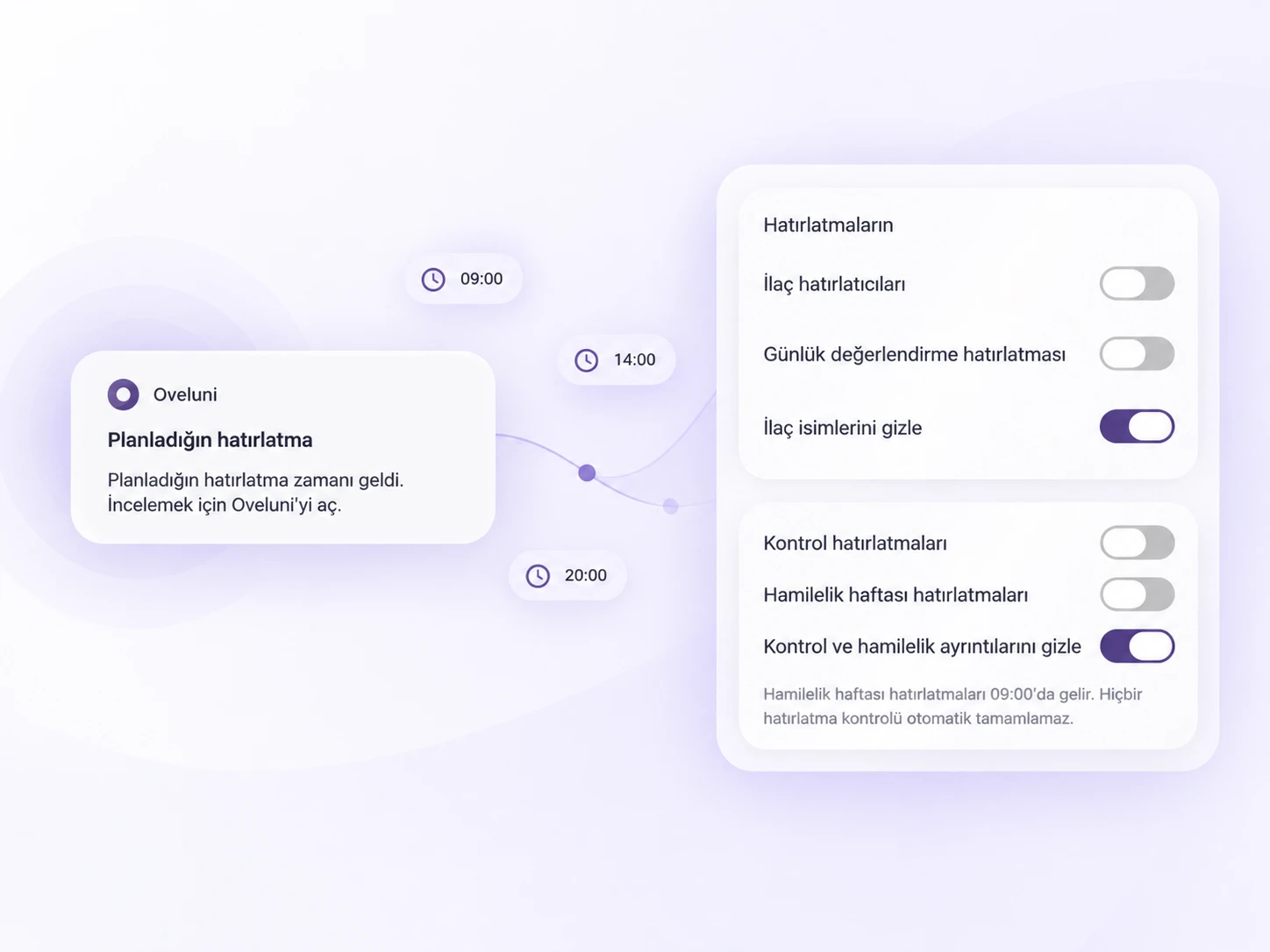
When details are hidden, the reminder still arrives on time; only its content turns into generic text. Instead of a medication name or an appointment detail, you'll see a sentence like "It's time for your scheduled reminder." Since you already know what to do when, this is usually enough; you open the app when you need the detail.
Which details might you want to hide?
- Medication names: The reminder arrives, but it doesn't say which medication it is.
- Check-up details: Information like your doctor's name, department or hospital can also reveal something about you.
- Pregnancy details: If you haven't shared your pregnancy with others yet, you may not want week reminders showing on the lock screen.
iPhone's own preview setting
Besides the app's own hiding settings, iPhone has its own notification settings too. In iPhone's Settings → Notifications, you can choose whether previews are always shown, only when unlocked, or never. You can set this for all apps or for individual apps.
The two settings complement each other. The iPhone setting decides when a notification shows its details at all; the app's own hiding setting decides which information never appears in the notification text at all.
For example, if you've chosen to show previews only when unlocked, the notification's content won't show on the lock screen. But while your phone is unlocked, at a moment you're sharing the screen with someone, the notification can still arrive in full detail. The app's own hiding setting closes this gap: the medication name is never written into the notification text at all. If you use an Apple Watch, we've gathered the settings to check for notifications on your wrist in medication reminders on Apple Watch: 5 settings to check.
Keep a balance while hiding
Hiding everything can sometimes make a reminder hard to understand. If you take more than one medication, can you tell which reminder belongs to which medication from its time? If not, you'll need to tap the notification and open the app; that only takes a few seconds.
Ask yourself: who is most likely to see this notification, and what don't I want them to know? Based on the answer, you can hide just the medication names, or all the details.
You don't have to set it once and forget it either. You can revisit your preferences when you start a new job, start spending more time in crowded places, or your situation at home changes.
Notification privacy in Oveluni
In Oveluni, these settings live under Reminder preferences in Settings, in the Notification Privacy section:
- Hide medication names: Medication reminders still arrive, but the medication's name isn't shown in the notification.
- Hide check-up and pregnancy details: Details of doctor visit and pregnancy week reminders aren't shown in the notification.
- Notification preview: You see, separately, how notifications will look on iPhone and Apple Watch for medications, daily check-ins and cycle.
- Send test notification: You check the setting with a real notification.
"Review in Oveluni" on the notification takes you to the details. If you also don't want someone who picks up your phone to see inside the app, turn on app lock in Privacy & Security: returning to Oveluni will then ask for Face ID, Touch ID or your device passcode.
This article is for general info only. It does not offer diagnosis or treatment; it provides practical suggestions on recording and tracking. Consult your doctor for health decisions. Last updated: 2 September 2026
Was this article helpful?
Thanks, we got your feedback.