


Reading a month at a glance with the calendar view
Medications, daily records and check-ups on the same calendar with colored markers; the shortest way to look back at a month.
- 4 min read
- 7 sections


In short
- Why a calendar?
- Colors and markers: what tells what apart?
- Month or week?
- Simplify with filters
- Tap a day to see the detail
When you think back on a month, a few days stick in your mind: a hard week, a check-up, maybe a trip. The rest blurs together. The calendar view shows that month together with your records on a single screen; instead of trying to remember what happened when, you see it.
Why a calendar?
Records in list form show information one by one; a calendar shows the relationship between them. If the same week has both a check-up and a few skipped medication records, the calendar shows them side by side. A month's overall rhythm is much easier to read than day-by-day lists.
The calendar also mirrors your record-keeping habit back to you. You notice at a glance which weeks you logged regularly and which days were left blank.
Colors and markers: what tells what apart?
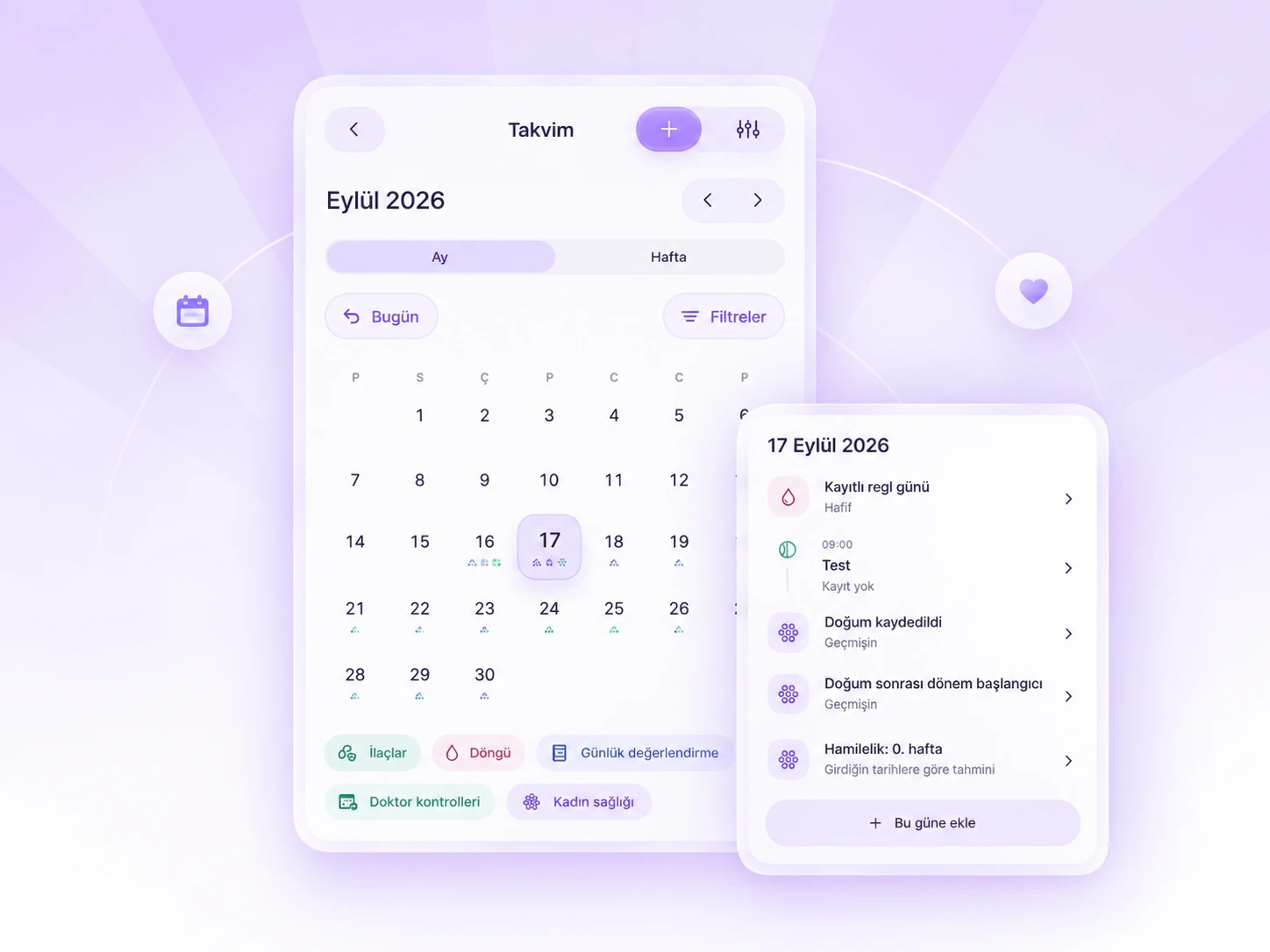
The calendar's most useful feature is that different record types appear in different colors. Medications, cycle, daily check-in, doctor visits and women's health records are each marked with their own color. Looking at a day, you can tell from the markers what was recorded that day.
You don't need to memorize the colors; the legend below the calendar shows which color belongs to what.
Month or week?
Month view gives you the overall picture: which days are full, which weeks are quiet, where check-ups fall in the month. Week view is useful when you want to look more closely. Switching between the two lets you see the big picture first, then the detail.
Going back to past months is just as easy. You can go back a few months and look at what you recorded during that time. This is especially useful when preparing for "How long has this been going on?" before a check-up.
Simplify with filters
If a month has a lot of records, the calendar can look crowded. At times like this, looking at only one or two categories makes things easier. For example, before a check-up, seeing only your cycle records or only your medication records helps you prepare for a question you might be asked.
A filter doesn't delete any records; it only chooses what you want to look at right now. All your records reappear once you remove the filter.
Tap a day to see the detail
The calendar's real strength shows up when you tap a day. That day's records line up with their times: the morning medication, the afternoon check-up, the evening check-in. You can tap any record to go into its detail.
If you notice a record you forgot, you can add a new one to that day from the same screen. That way, days left incomplete are filled in as much as you remember.
From the calendar to the conversation
The calendar is also a good starting point when preparing for a doctor's visit. Opening the last few months and looking at what was recorded on which days makes it easier to put what you want to say in order. If you turn what you see into a few bullet points and take them with you, the conversation spends less time on remembering and more on your questions.
Using the calendar in Oveluni
- Month and week: In the Calendar tab, switch between Month and Week, and use the ‹ › arrows to move to previous and next periods. The "Today" button brings you back to today.
- Filters: In Filters, choose only the categories you want to see out of the five.
- Day breakdown: Tap a day to list that day's records with their times.
- Add to this day: Quickly add a record to the selected day with "+" or "Add to this day."
- Repeating plans: Repeating plans also appear as markers on the calendar for upcoming months.
If you want to look more closely at a period you see on the calendar, switch to Summaries: see the distribution of your records over 7, 30 or 90-day periods, and compare two equal periods side by side. Empty days stay empty; this isn't a health score, it's a summary of the records you've kept. To read Summaries step by step, see our guide to Summaries and period comparison in Oveluni.
This article is for general info only. It does not offer diagnosis or treatment; it provides practical suggestions on recording and tracking. Consult your doctor for health decisions. Last updated: 19 September 2026
Was this article helpful?
Thanks, we got your feedback.