


Set up your first medication plan in Oveluni in 3 steps
Medication name, times and repeat: once your plan is set up, reminders appear when it is time.
- 3 steps
- 3 min read
- 5 sections


In short
- Before you start: have these at hand
- Step 1: Medication name and form
- Step 2: Repeat, times and amount
- Step 3: Review and save
- After you set up the plan
You've downloaded Oveluni and want to add your first medication. A medication plan is set up in three steps and takes a few minutes. Once the plan is ready, reminders appear when it's time; and every dose you take or skip builds up in its own history.
Before you start: have these at hand
You'll need a few pieces of information to set up the plan. Keep the medication box, your prescription, or the note your doctor gave you nearby:
- The medication's name and form (tablet, capsule, syrup, etc.)
- The amount and times of day your doctor or pharmacist told you
- When you started, and when it will end if known
Oveluni doesn't decide this information for you; the plan is made up of the information you enter. If there's anything you're not sure about, ask your doctor or pharmacist first.
You can follow the same approach for supplements and vitamins. Setting up a separate plan for each lets you see when you take which one together with your medications in one place.
Step 1: Medication name and form
Tap Quick add on the Today screen and choose New medication plan. In the first step you type the medication's name and choose its form. You can also add extra details if you'd like, such as a note that caught your eye on the box.
Writing the medication's name the way it appears on the box makes it easier to find later. You can search by name in the Medications list.
Step 2: Repeat, times and amount
The second step is the heart of the plan. Here you set:
- Repeat: How often the plan repeats.
- Times: You can add more than one time a day, such as morning, noon and evening.
- Amount and unit: How much is taken each time.
- Start and end: What date the plan starts and ends.
- Time zone: Which time zone the plan runs on.
Enter the times and amount exactly as your doctor or pharmacist told you. Reminders arrive according to these times.
For example, for a medication you were told to take twice a day, you'd add two times: one in the morning, one in the evening. Choose the times based on the instructions you were given, not your own day; if a time doesn't fit your day, ask your doctor or pharmacist about it. If you're traveling, choosing the right time zone matters even more.
Step 3: Review and save
In the last step, everything you entered is summarized on a single screen. Check the medication's name, times and dates once more; if something's wrong, go back and fix it. If everything is correct, save the plan.
On this screen you'll also see this sentence: "This is the plan you entered; it is not a medical verification." Oveluni doesn't assess whether the plan is correct; it only reminds you of and records the schedule you set up.
The plan you save appears as active in the Medications list and also takes its place on the Calendar. Repeating plans appear as markers on the calendar for upcoming months too, so you can see in advance which days the plan spans.
After you set up the plan
Once the plan is saved, reminders start arriving at the times you chose. "Review in Oveluni" on the notification opens the app; if you're not free at that moment you can use "Remind me in 10 minutes."
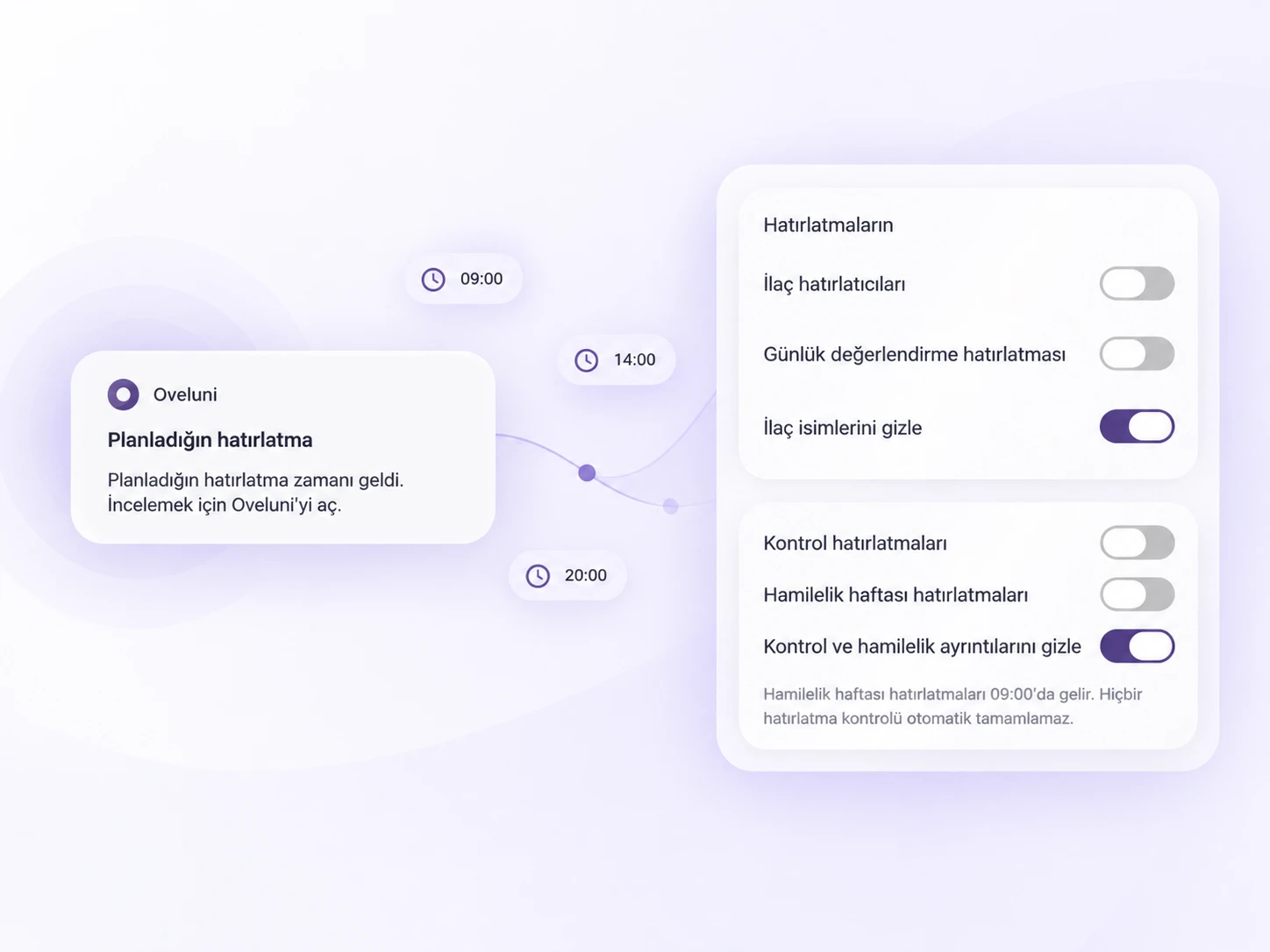
- Intake log: You log, by your own entry, whether you took or skipped the medication; add the actual time and a short note if you'd like. This log doesn't change your plan.
- Editing the plan: If your doctor told you about a change, use "Edit details and plan." This creates a new plan version; your earlier records are kept.
- Archiving: When you archive a medication you no longer take, it leaves the active list while its history is kept.
- Reminder settings: You can choose the notification sound and hide medication names in notifications. Reminders also appear on Apple Watch.
As the days go by, you'll see medication intake in Summaries broken down into taken, skipped and no record. A day with no record only shows that nothing was logged that day; it doesn't mean the medication wasn't taken.
For everyday habits that make remembering easier, see also How to remember to take your medication: 9 practical ways.
This article is for general info only. It does not offer diagnosis or treatment; it provides practical suggestions on recording and tracking. Consult your doctor for health decisions. Last updated: 8 September 2026
Was this article helpful?
Thanks, we got your feedback.